
If you’re using AI-generated images on LinkedIn, then there’s one aspect that can affect your authority, i.e., the Content Credentials tag, aka ‘cr’ tag. This tag will tell your audience that the image you’ve used is AI-generated.
Something they will think is easy to take.
But, to be honest, generating an AI image isn’t an easy task. It, too, takes significant time and effort.
If you’re looking for ways to hide the Cr tag, follow the methods below. They are easy, free, and totally doable with any image you generate using an AI tool like Sora, Midjourney, or Firefly.
What are Content Credentials?
Since the launch of AI tools like ChatGPT, Gemini, Midjourney, and Canva AI, so much AI-generated content is circulating on the internet.
Some try to impersonate, and others share false information for personal gain.
Therefore, to identify the origin and edits of digital content, the Coalition for Content Provenance and Authenticity (C2PA) offers an open technical standard for publishers, creators, and consumers known as Content Credentials, aka the Cr tag.

Whenever an image is generated, its metadata stores information about its creation, editing, and the tools used.
And most tools support this, including Adobe, ChatGPT, and Gemini.
It means that images created using these tools will definitely have the Cr tag. And platforms like LinkedIn analyze pictures to find the Cr tag; your AI-generated image will likely show it.

But if you want to hide it, here is how.
How to Hide Content Credentials, aka Cr Tag
Officially, there’s no way to hide the LinkedIn Content Credentials tag; however, by following the steps below, you can hide it.
Method 1: Change the Image Type
Yup, by changing the type of the image, you can hide the Content Credentials from your AI-generated image.
See below for the comparison.
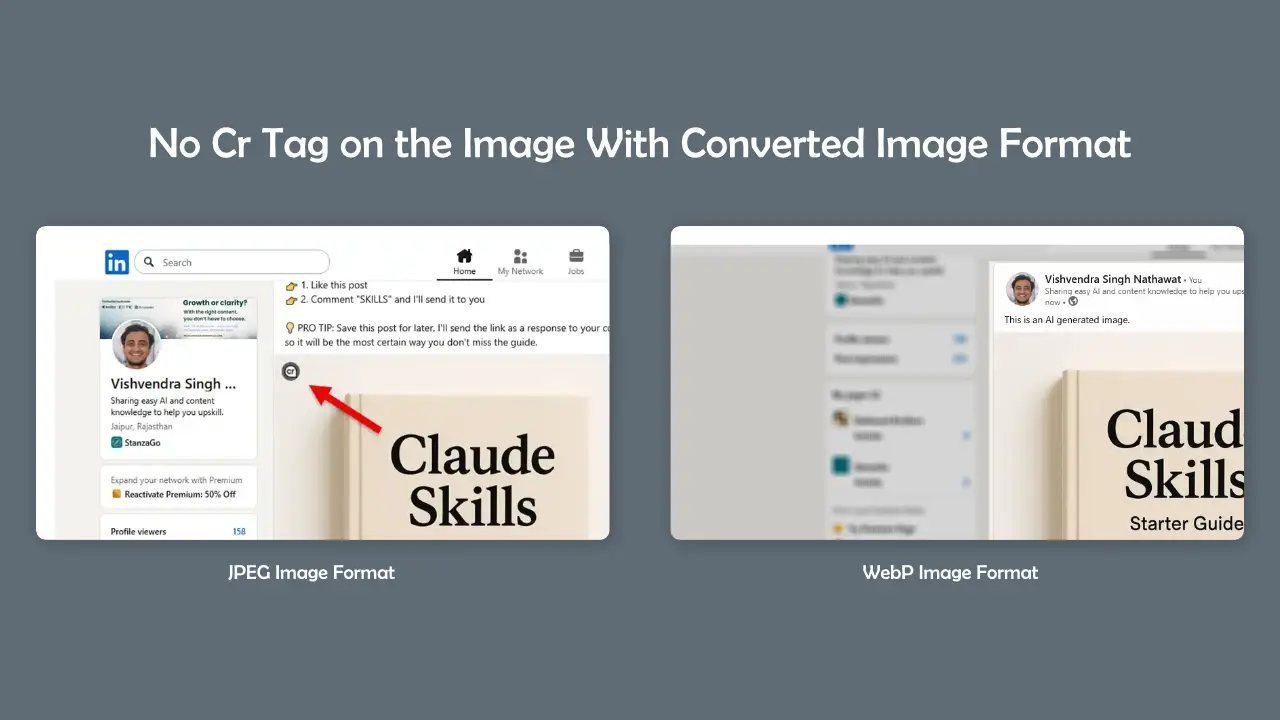
If you know how to change the type of an image using tools like Photoshop or Affinity Photo, that’s great. Pat yourself on the back. If not, use any online image converter. I prefer the ANYWEBP tool.
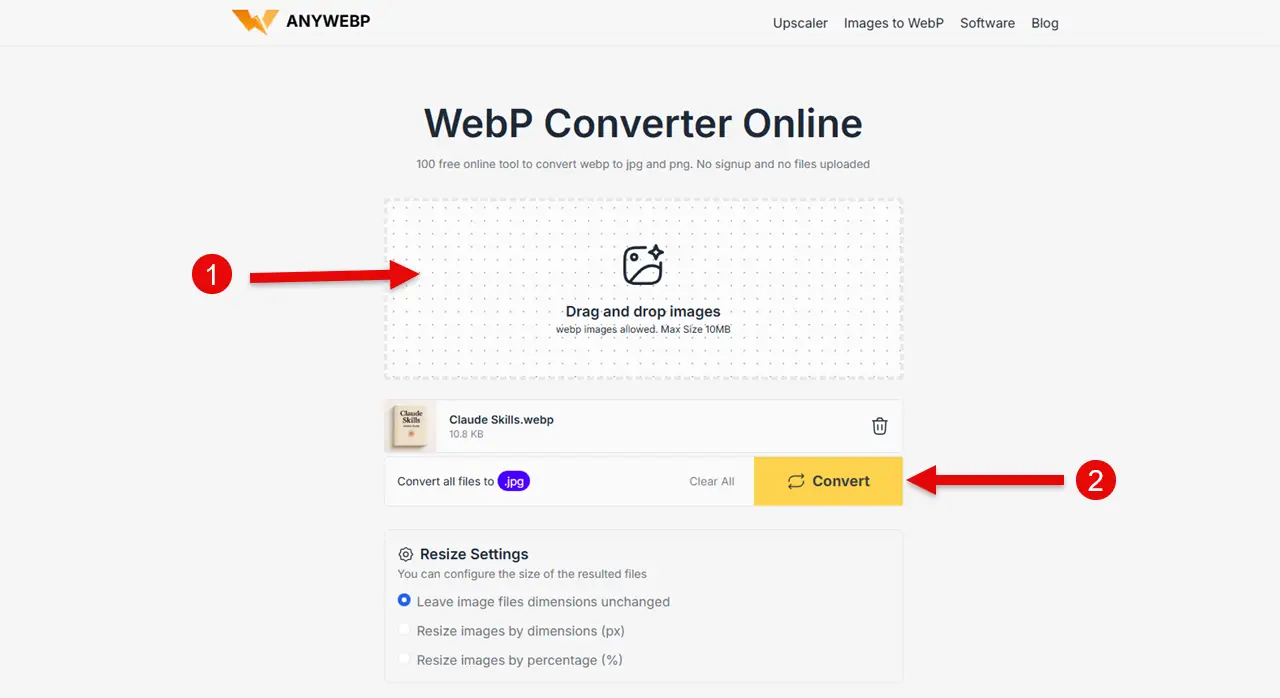
- Just open it in your browser → ANYWEBP.
- Then, upload your image.
- Click to Convert.
- Once converted, save the image.
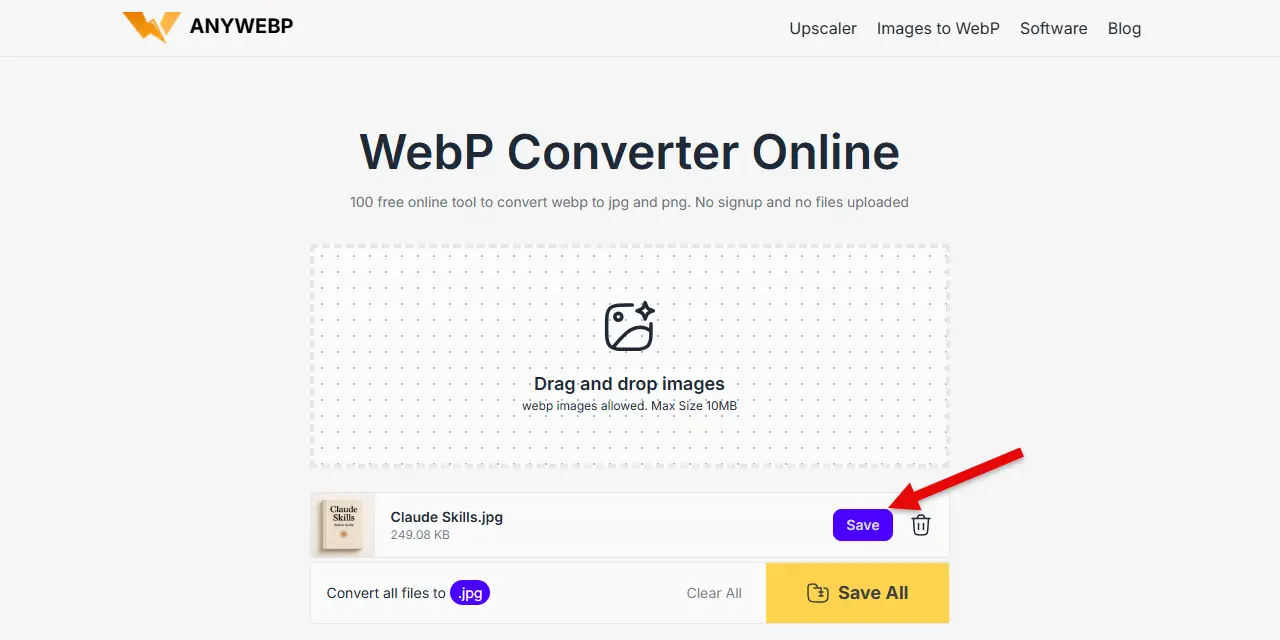
Post the image on LinkedIn, and you won’t see the Cr tag, voila. Awesome, right?
Method 2: Compress the Image
Sometimes the above method doesn’t work. So, in that case, what’s left is that you can apply some compression on the image.
Go to TinyPNG, upload your image, and compress it.

Once you download and repost, the Cr tag will no longer be there.
When compressing, make sure you use reliable tools such as TinyPNG, ShortPixel, or photo-editing software like Photoshop or Affinity Photo.
Method 3: Don’t Publish the Same Image
If neither of the above methods works, you’re left with making subtle changes to your image.
For example:
- Add a little text on it.
- Use Canva and insert some elements.
- Blur, crop, and do anything that comes under the editing part.
By doing so, the image is completely human-created, removing the embedded Content Credentials.

And obviously, if you have edited it, it’s no longer right to say it is generated by an AI tool.
Now that you’ve learned how to hide the Cr tag, there are some ethical considerations you should keep in mind when applying the methods above.
Let’s have a look at them as well.
Ethical Measures to Consider
What I shared above is mostly for fun or to demonstrate your authority in the workplace. For example, you and your colleague or your boss are discussing something, and all of a sudden, they bring up this Cr tag thing.
There, you can show them how to hide it and present yourself as someone with additional expertise. It helps in your career, whether you’re a fresher or already a senior executive.
Another thing is that if you’ve created content, found information, done research, brought everything together, and then make an infographic, it shows you are not the creator. It indeed dismisses all of your efforts.
In that case, you can also use these methods to hide the Cr tag.
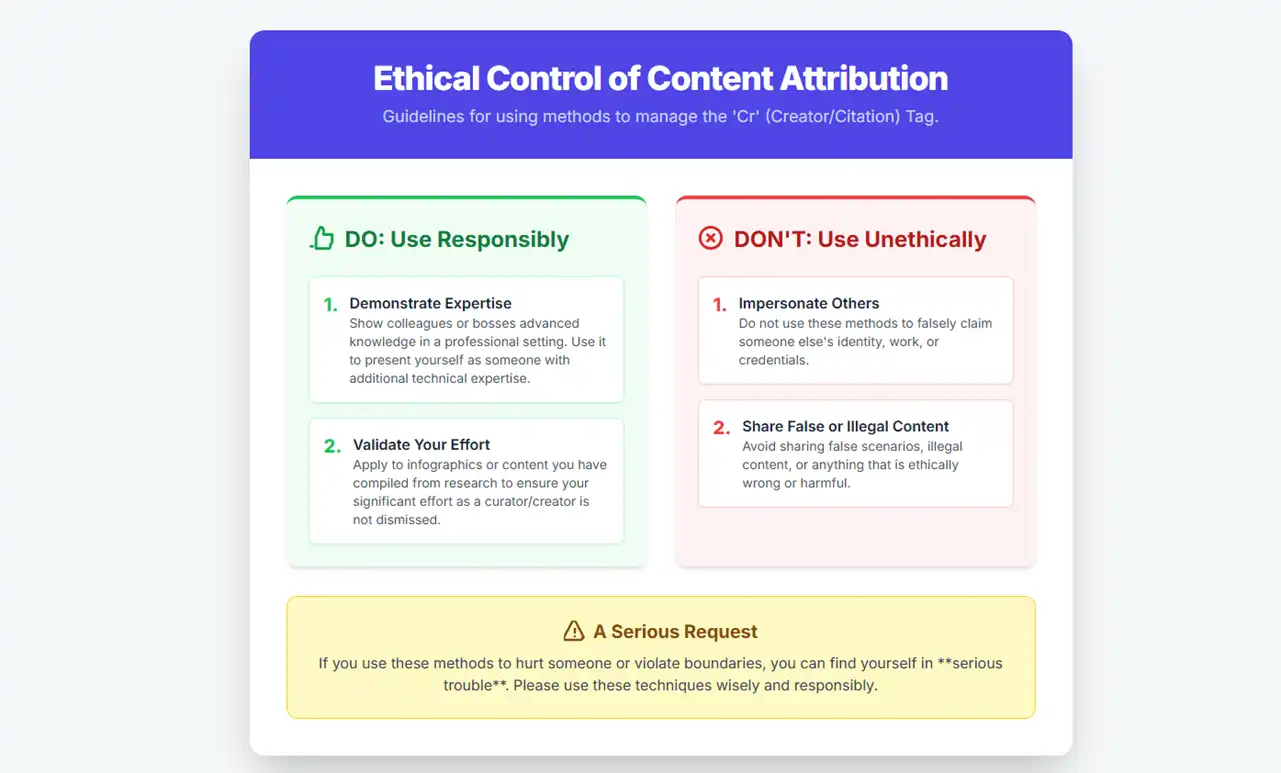
But, other than that, don’t use it to impersonate someone. Share false scenarios, or anything illegal and ethically wrong. If you do that and it hurts someone or violates boundaries, you can find yourself in serious trouble.
So, take this as a request: don’t use the methods above, as they can cause problems for you and others.
Conclusion
A Cr tag can immediately make you seem like someone with non-unique thoughts. Often, people who don’t use AI consider those who do as less experienced, shortcut-seekers, and ineffective.
To be honest, no matter what the number says, there are still more people out there who don’t use AI.
Therefore, if you’ve created something with effort and time, don’t shy away from using the above methods to hide the Cr tag. There are completely free ways that help you present yourself as a thought leader or expert in a particular field.
This probably helps you if you’re self-employed and have good knowledge to share; employers who find your images without the Cr tag will try to engage with you.
However, keep ethical considerations in mind when posting AI-generated images on LinkedIn.