
If you’re using the Brizy PRO WordPress page builder with LiteSpeed Cache plugin, you’ll definitely run into Brizy Popup not showing issues. Recently, I added popups to my website, but they weren’t appearing.
At first, I thought it was a theme issue, or maybe the CDN wasn’t working correctly.
However, the real culprit was the LiteSpeed Cache plugin, which has been helping me keep my website’s speed in check for more than 5 years.
But popups are necessary, too. I want to build my email list so that I can effectively market my products and services. Thankfully, I have resolved the issue, and if you’re facing the same, then the following steps can help you, too.
Step 1: Make Sure the Brizy Popup Not Showing is a LiteSpeed Cache Plugin Issue
Before you declare the LiteSpeed plugin the real culprit of the popup not showing, it’s best first to make sure of it.
So, for that, deactivate the plugin from your Plugins window.
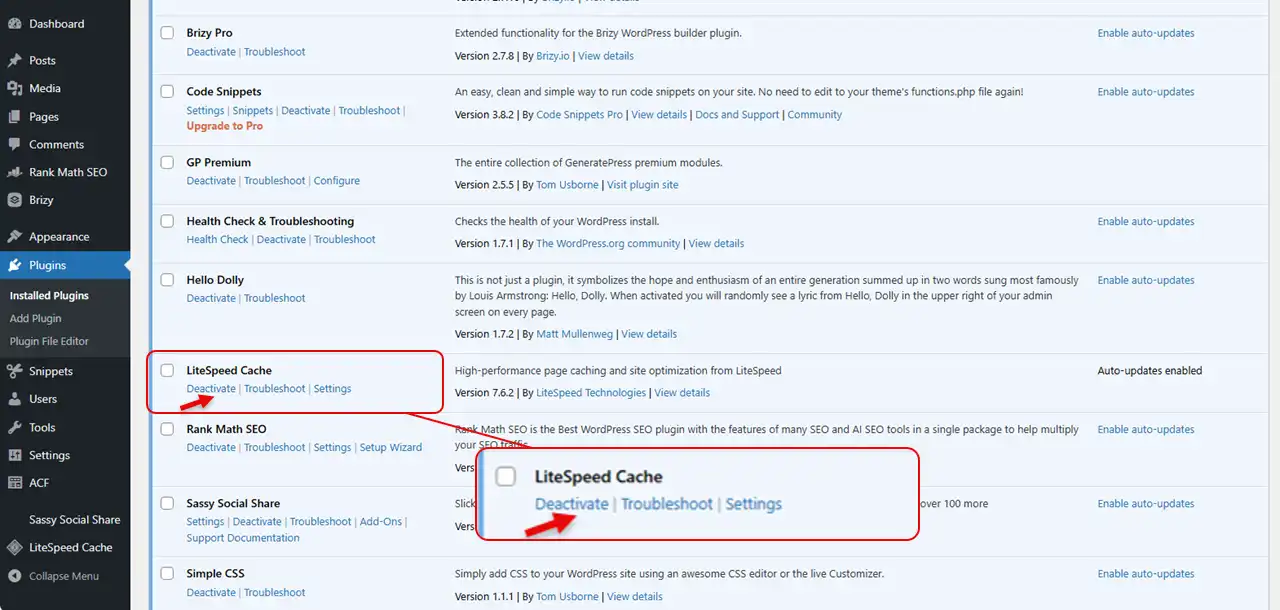
Now, if you’re using a CDN, such as Cloudflare, then log in to your CDN account, and Purge or Clear all the cache. After this, open an incognito tab and go to the front of your website. Perform the actions or user behaviour that will trigger the popup.
If you see the popup, it’s definitely a LiteSpeed Cache issue. Otherwise, it’s best you contact the Brizy Support team.
If disabling the LiteSpeed plugin brought up your popup, you should continue to follow the tutorial.
Step 2: Solve the Brizy Popup Not Showing Issue
As we have identified that LiteSpeed is causing the issue, the following steps will help you resolve it.
- First, re-enable it.
- Then, go to LiteSpeed Cache → Page Optimization
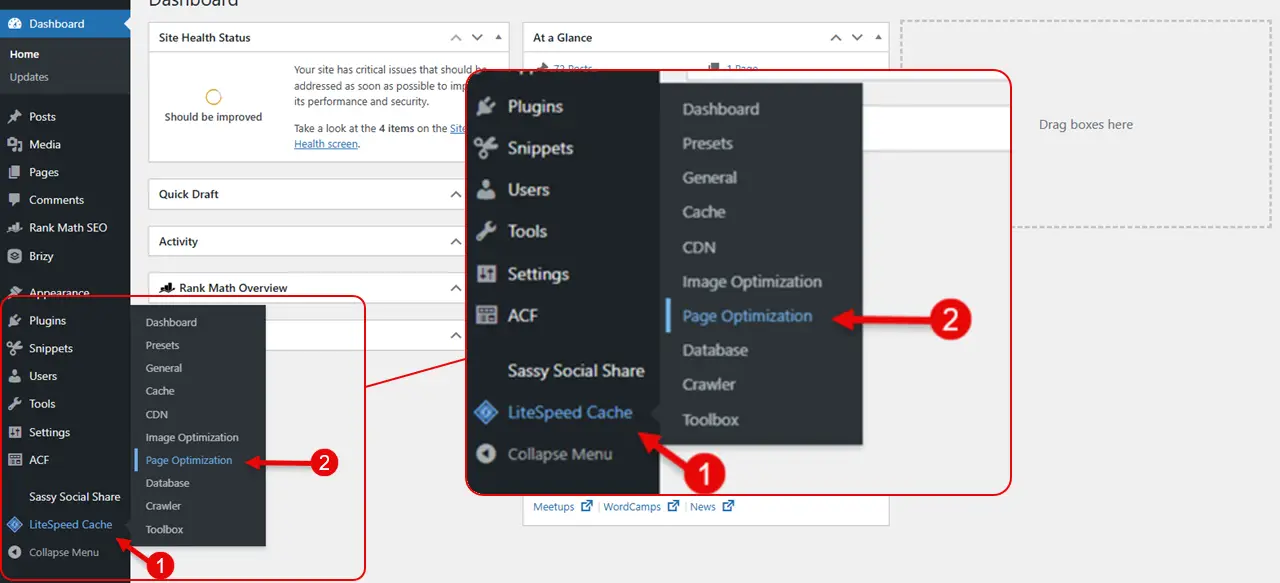
You’ll be redirected to the CSS Settings. There, what you need to do is scroll down to the Generate UCSS, and set it to OFF if it’s ON.
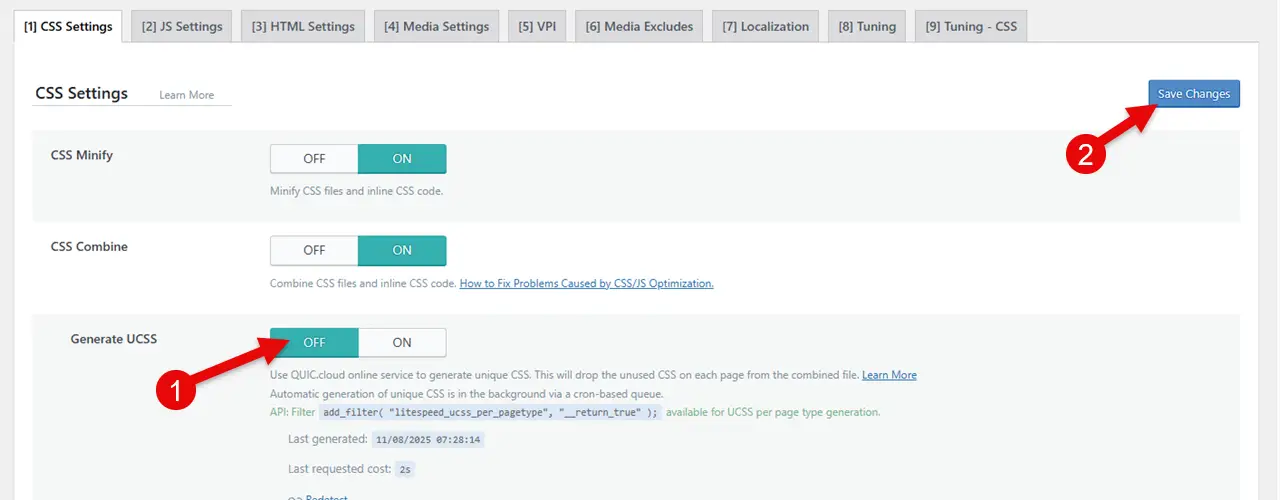
This feature makes the LiteSpeed Cache plugin minify the unused CSS, and popups are unused ones till they are triggered. After doing this, save changes, purge all of your cache, and your popup will start to showcase.
The popup appearing on my website after resolving the issue.
Step 3: What to Do If the Popup Is Still Not Showing?
After applying the above steps, if you won’t see the popup, then in that case, do the following:
- First, turn off every CSS optimization.
- Then, turn off every HTML optimization.
- Then, turn off every JS optimization.
- And finally, go to Tuning → Optimize for Guests Only → OFF
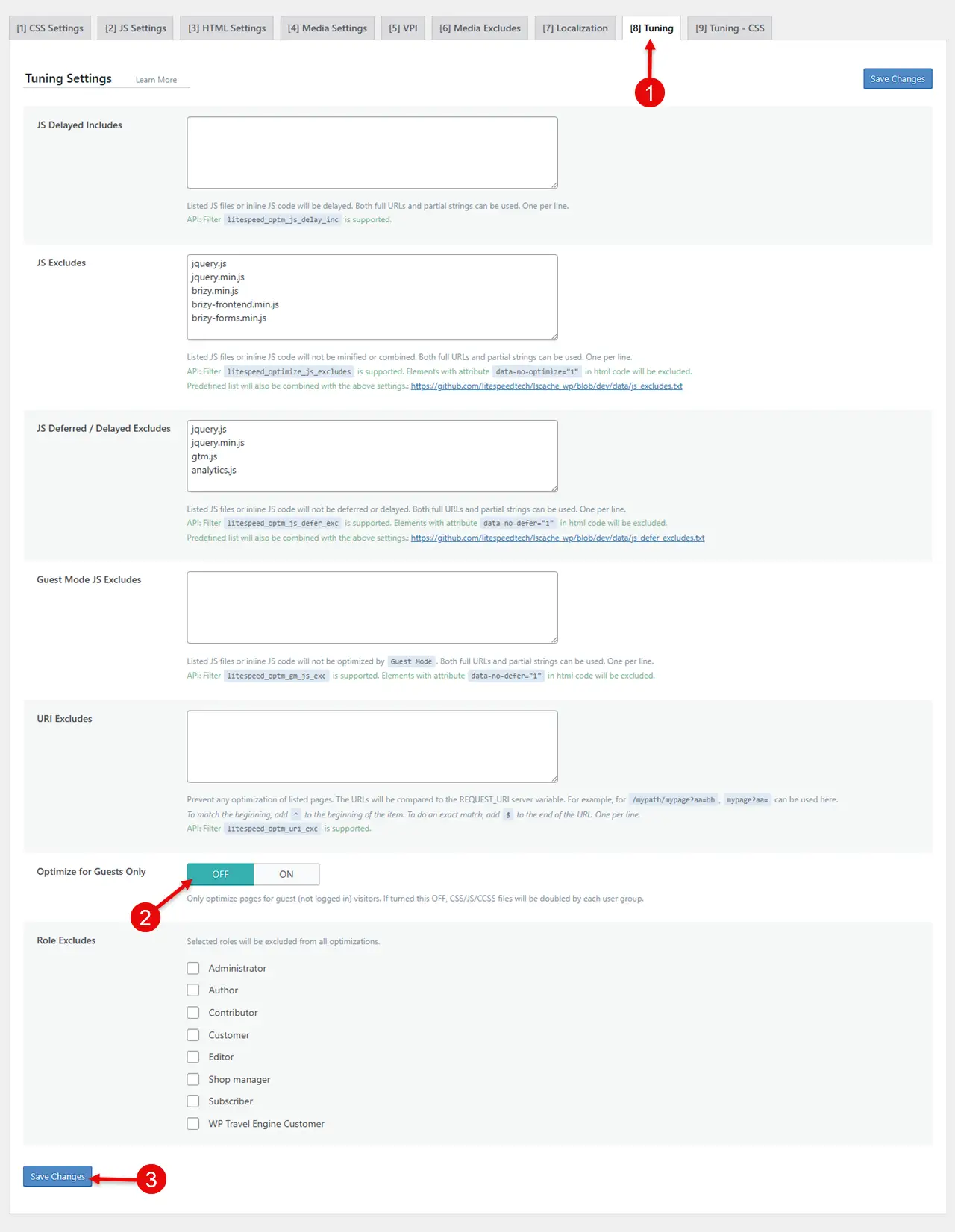
Now, once you have applied this, one by one re-enable the optimizations, and check after enabling which setting the popup stops displaying.
That optimization is your culprit.
In most cases, reducing unused CSS is the cause, but hey, it’s technology; anything is possible. So, try everything and you’ll find the issue.
Using Other Cache Plugins?
It’s possible you might be using other WordPress caching plugins and facing the same issue.
Well, most cache plugins have similar features, therefore, you can try to apply these steps according to their UI. Often, cache plugins optimize our websites in a way that they have no idea what they are breaking.
Therefore, it’s our responsibility to apply the options carefully, and when we face issues, simply try the basic methods.
And if that doesn’t work, reach out to professional help.
Conclusion
I hope the steps I have shared will help you resolve your issue with the Brizy builder popup not showing.
These are easy-to-follow steps, and you can apply them without breaking your website.
However, I recommend that you don’t try too much if you’re not a technical person, or else you can lose what you have built after so many efforts.
Best to take help when you are not capable.
If you’re interested in AI, Content, and Leadership, I have launched a newsletter on Substack, the Useful Newsletter, that you can join for free and get weekly insights on what’s essential to stay ahead.